

In a previous blogpost a shortly described what you can do with the “HP BIOS CmdLets for Windows PowerShell (x64)” and in this post I’ll give you a PowerShell wrapper for LTI/ZTI to deploy it.
Download from installer from
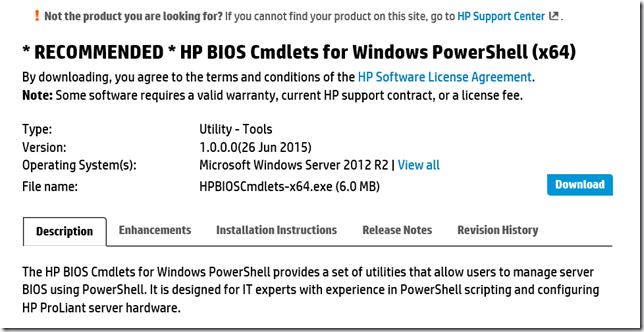
The LTI/ZTI Wrapper:
It is very simple, basically create a folder called “Install – HPBIOSCmdlets”, in the folder, create a folder called “Source” and in that folder you save the MSI file from HP (the download is a EXE, just unzip it and it will be a MSI file inside) and then you save the PowerShell installer in the “Install – HPBIOSCmdlets” folder, like this

Here is the:
<#
 Install Wrapper 1.0
 Author: Mikael Nystrom
 http://www.deploymentbunny.com
#>

Function Invoke-Exe{
    [CmdletBinding(SupportsShouldProcess=$true)]

    param(
        [parameter(mandatory=$true,position=0)]
        [ValidateNotNullOrEmpty()]
        [string]
        $Executable,

        [parameter(mandatory=$false,position=1)]
        [string]
        $Arguments
    )

    if($Arguments -eq "")
    {
        Write-Verbose "Running $ReturnFromEXE = Start-Process -FilePath $Executable -ArgumentList $Arguments -NoNewWindow -Wait -Passthru"
        $ReturnFromEXE = Start-Process -FilePath $Executable -NoNewWindow -Wait -Passthru
    }else{
        Write-Verbose "Running $ReturnFromEXE = Start-Process -FilePath $Executable -ArgumentList $Arguments -NoNewWindow -Wait -Passthru"
        $ReturnFromEXE = Start-Process -FilePath $Executable -ArgumentList $Arguments -NoNewWindow -Wait -Passthru
    }
    Write-Verbose "Returncode is $($ReturnFromEXE.ExitCode)"
    Return $ReturnFromEXE.ExitCode
}
Function Get-OSVersion([ref]$OSv){
    $OS = Get-WmiObject -class Win32_OperatingSystem
    Switch -Regex ($OS.Version)
    {
    "6.1"
        {If($OS.ProductType -eq 1)
            {$OSv.value = "Windows 7 SP1"}
                Else
            {$OSv.value = "Windows Server 2008 R2"}
        }
    "6.2"
        {If($OS.ProductType -eq 1)
            {$OSv.value = "Windows 8"}
                Else
            {$OSv.value = "Windows Server 2012"}
        }
    "6.3"
        {If($OS.ProductType -eq 1)
            {$OSv.value = "Windows 8.1"}
                Else
            {$OSv.value = "Windows Server 2012 R2"}
        }
    DEFAULT { "Version not listed" }
    }
}
Function Import-SMSTSENV{
    try
    {
        $tsenv = New-Object -COMObject Microsoft.SMS.TSEnvironment
        Write-Output "$ScriptName - tsenv is $tsenv "
        $MDTIntegration = "YES"

        #$tsenv.GetVariables() | % { Write-Output "$ScriptName - $_ = $($tsenv.Value($_))" }
    }
    catch
    {
        Write-Output "$ScriptName - Unable to load Microsoft.SMS.TSEnvironment"
        Write-Output "$ScriptName - Running in standalonemode"
        $MDTIntegration = "NO"
    }
    Finally
    {
    if ($MDTIntegration -eq "YES"){
        $Logpath = $tsenv.Value("LogPath")
        $LogFile = $Logpath + "\" + "$ScriptName.txt"

    }
    Else{
        $Logpath = $env:TEMP
        $LogFile = $Logpath + "\" + "$ScriptName.txt"
    }
    }
}
Function Start-Logging{
    start-transcript -path $LogFile -Force
}
Function Stop-Logging{
    Stop-Transcript
}

# Set Vars
$SCRIPTDIR = split-path -parent $MyInvocation.MyCommand.Path
$SCRIPTNAME = split-path -leaf $MyInvocation.MyCommand.Path
$SOURCEROOT = "$SCRIPTDIR\Source"
$LANG = (Get-Culture).Name
$OSV = $Null
$ARCHITECTURE = $env:PROCESSOR_ARCHITECTURE

#Try to Import SMSTSEnv
. Import-SMSTSENV

#Start Transcript Logging
. Start-Logging

#Detect current OS Version
. Get-OSVersion -osv ([ref]$osv)

#Output base info
Write-Output ""
Write-Output "$ScriptName - ScriptDir: $ScriptDir"
Write-Output "$ScriptName - SourceRoot: $SOURCEROOT"
Write-Output "$ScriptName - ScriptName: $ScriptName"
Write-Output "$ScriptName - OS Name: $osv"
Write-Output "$ScriptName - OS Architecture: $ARCHITECTURE"
Write-Output "$ScriptName - Current Culture: $LANG"
Write-Output "$ScriptName - Integration with MDT(LTI/ZTI): $MDTIntegration"
Write-Output "$ScriptName - Log: $LogFile"

$Executable = "msiexec.exe"
$Arguments = "/i ""$SOURCEROOT\HPBIOSCmdlets-x64.msi"" /qb"

Write-Output "$ScriptName - Executable: $Executable"
Write-Output "$ScriptName - Arguments: $Arguments"

Invoke-Exe -Executable $Executable -Arguments $Arguments -Verbose

. Stop-Logging
Create the Application in the Task Sequence:
(This how it is done in LiteTouch, but it will be the same in ConfigMgr)
Create a new Application, browse to the folder you created and use this as your command line:
PowerShell.exe -ExecutionPolicy Bypass -File Install-HPBIOSCmdlets-x64.ps1
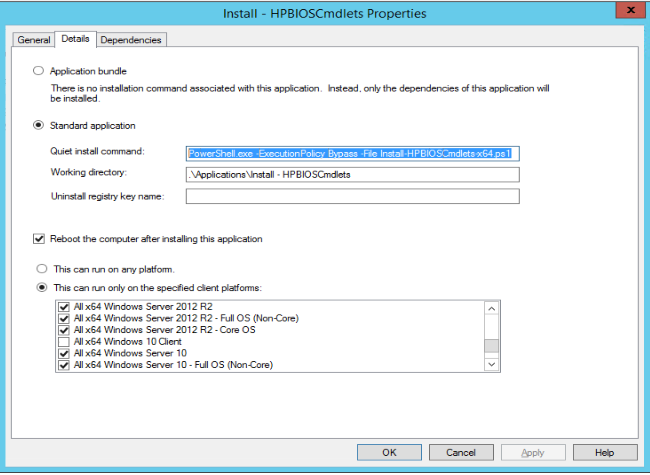
It should look something like this.
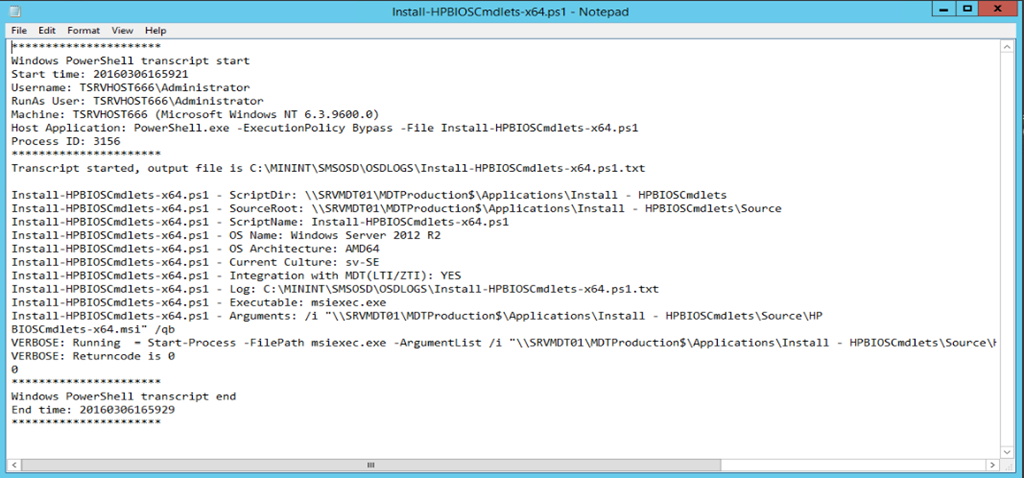
The logfile
It will end up in C:\Windows\Temp\Deploymentlogs (for LTI) and should look something like this:
/mike
Share this:

Categories: BIOS, HP, OS Deployment, OSD, PowerShell

 The Deployment Bunny
2 replies »