

The PK/KEK Reality Check and Fix!

What is the issue?
Secure Boot won’t ‘turn off’ in 2026. Most systems will keep booting, but devices that don’t transition from the 2011 trust anchors to the 2023 certificate set can lose the ability to receive future boot-level security updates (db/dbx/boot manager). The real work is validating firmware trust (PK/KEK), the Secure‑Boot‑Update task, and reading the event IDs correctly.
The Secure Boot trust model
UEFI Secure Boot is a firmware-enforced PKI chain stored in authenticated UEFI variables:
• PK (Platform Key) – defines platform ownership (who can change Secure Boot configuration)
• KEK (Key Exchange Key) – authorizes updates to db and dbx
• db – allowlist of trusted signers/hashes for EFI components (bootloaders, EFI apps)
• dbx – denylist (revocations): known-bad/known-vulnerable signers/hashes
Key operational point: Windows can orchestrate updates, but firmware policy decides what is accepted.
What changes in 2026
Microsoft’s long-lived 2011 Secure Boot certificates begin expiring in June 2026 and complete by Oct 2026 (certificate-dependent). Systems without the 2023 chain generally keep booting, but may be unable to take future updates that rely on refreshed boot trust (db/dbx/boot manager). That’s why ‘it still boots’ is not the same as ‘it can still be secured at boot.’
The scheduled task
The scheduled task that orchestrates Secure Boot certificate servicing is:
\Microsoft\Windows\PI\Secure-Boot-Update
It runs at startup and periodically, performs steps in order (DB updates → optional DB additions → KEK update → boot manager replacement), and logs progress/failure into the System event log.
Registry status to correlate:
HKLM:\SYSTEM\CurrentControlSet\Control\SecureBoot\Servicing
Useful values:
• UEFICA2023Status (NotStarted / InProgress / Updated)
• UEFICA2023Error
• UEFICA2023ErrorEvent
Verification
Confirm Secure Boot is enabledConfirm-SecureBootUEFI
Check servicing statusGet-ItemProperty HKLM:\SYSTEM\CurrentControlSet\Control\SecureBoot\Servicing | Select-Object UEFICA2023Status, UEFICA2023Error, UEFICA2023ErrorEvent
Verify 2023 certs in firmware variables (db/KEK)([Text.Encoding]::ASCII.GetString((Get-SecureBootUEFI KEK).Bytes) -match 'Microsoft Corporation KEK 2K CA 2023')
([Text.Encoding]::ASCII.GetString((Get-SecureBootUEFI db ).Bytes) -match 'Windows UEFI CA 2023')
([Text.Encoding]::ASCII.GetString((Get-SecureBootUEFI db ).Bytes) -match 'Microsoft UEFI CA 2023')
([Text.Encoding]::ASCII.GetString((Get-SecureBootUEFI db ).Bytes) -match 'Microsoft Option ROM UEFI CA 2023')
Check task healthGet-ScheduledTask -TaskPath '\Microsoft\Windows\PI\' -TaskName 'Secure-Boot-Update' | Select-Object TaskName, State, Enabled
Get-ScheduledTaskInfo -TaskPath '\Microsoft\Windows\PI\' -TaskName 'Secure-Boot-Update'Pull Secure Boot servicing events
$ids = 1032,1034,1036,1043,1044,1045,1795,1796,1799,1800,1801,1802,1803,1808
Get-WinEvent -FilterHashtable @{LogName='System'; Id=$ids} -MaxEvents 200 | Sort-Object TimeCreated | Select-Object TimeCreated, Id, LevelDisplayName, ProviderName, Message
Event IDs: the fast ‘what do I do now?’ map
Success / completion:
• 1808: fully updated (goal state)
• 1799: 2023-signed boot manager installed
• 1034/1036/1043/1044/1045: DB/DBX/KEK update steps succeeded
Normal intermediate state:
• 1801: staged/available but not yet applied — usually reboot + ensure task runs
Blocked:
• 1802: intentionally blocked due to known firmware issue — update firmware/hypervisor; track exception
• 1803: PK-signed KEK missing — OEM/hypervisor escalation; not fixable in Windows
Failed execution:
• 1795: firmware returned explicit error code
• 1796: unexpected error (HRESULT) — firmware quality/NVRAM state; power-cycle and update firmware/hypervisor
Virtualization: what differs in practice
Hyper‑V Gen2 typically has a Microsoft-owned firmware PK and is generally ‘well behaved’; 1801 is often just incomplete staging + reboot/task execution.
VMware (especially older VMs) frequently fails due to PK/UEFI variable behavior (NULL/invalid PK or broken NVRAM persistence). Treat persistent 1803 and repeated 1795/1796 as platform firmware ownership/quality issues—not Windows patching issues.
VMware‑Specific Guidance
Secure Boot failures on VMware are rarely caused by Windows. They are almost always caused by virtual firmware state, especially on VMs created years ago and later upgraded in place.
- Check how old the VM really is (creation era matters more than OS version).
- Interpret events accordingly: 1801 can mean ‘staged but unable to commit’; 1803 is a hard stop (PK/KEK ownership).
- Validate configuration from the host side: UEFI + Secure Boot enabled, no historical custom key modes.
- Remember NVRAM (.nvram) persists Secure Boot variables; repeated 1795/1796 often map to NVRAM state issues.
- Be careful with manual PK enrollment: it changes platform ownership and can trigger BitLocker recovery.
- Sometimes the right fix is rebuild: create a new VM on a modern ESXi version with Secure Boot enabled at creation.
Tips & tricks
• If UEFICA2023Status = InProgress: reboot a couple of times, confirm the task runs, look for progress events (104x, 1799) and final 1808.
• Suspend BitLocker before forcing steps (especially on servers): Suspend-BitLocker -MountPoint C: -RebootCount 3
• Don’t confuse ‘1801 present’ with ‘broken’—it often means queued + waiting for reboot/task run.
• Treat 1803 as an escalation trigger: stop troubleshooting Windows and escalate to OEM/hypervisor.
Busting some Myths!
- Myth: ‘Secure Boot stops working in 2026.’ Reality: boot continues; what degrades is future boot-security update capability.
- Myth: ‘This is just a Windows update bug.’ Reality: the root is firmware trust ownership (PK/KEK), especially on VMs.
- Myth: ‘Microsoft can force this everywhere.’ Reality: not without PK authorization—by design.
- Myth: ‘Disabling Secure Boot is a workaround.’ Reality: it removes a key boot protection layer and is a security regression.
let us have some fun with powershell and scripts…
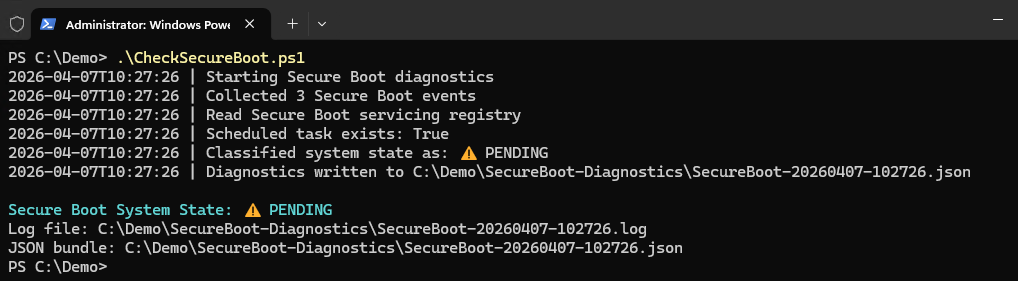
So, I have created som scripts, the first one named CheckSecureBoot will give you a reality check, you can run in on one device to see if it is ok or not, you can find the script here:
Files/Tools/CheckSecureBoot/CheckSecureBoot.ps1 at master · DeploymentBunny/Files
When running the script it looks like this:
(This shows a device where we are not done
And here you can see when a device has been updated:
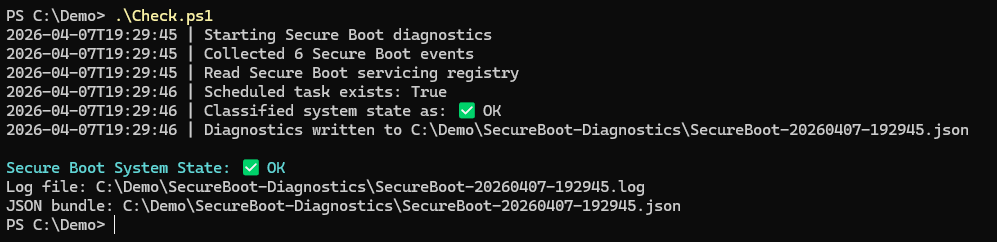
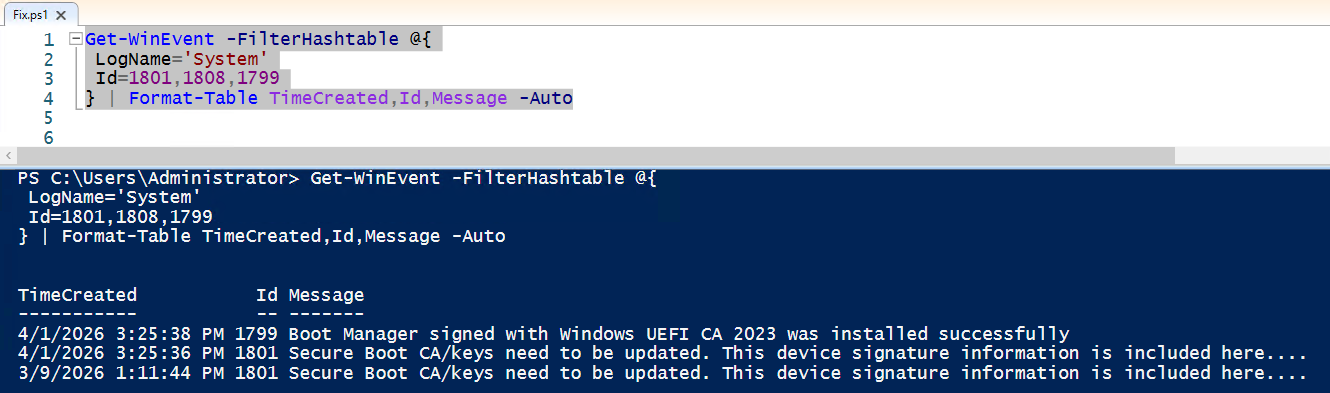
Now, the question is how did I get from the first picture to the second picture? Well, this could happen automatically, depending on hardware, virtualzation platforsm, bios, settings, and a milion other things. In this case, I needed to force it to do the update, and here is the code snippet for that:
As you can see, it needs to be updated
Let us take one more look:
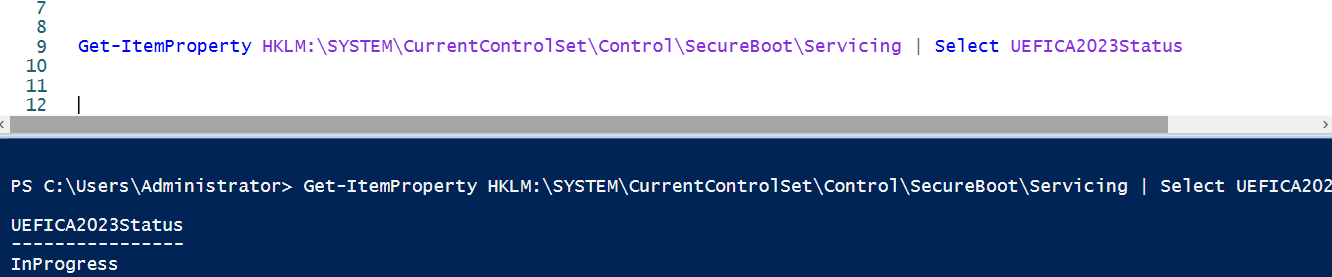
Yep, inprogress, and it will be in progress forever… unless we do something
reg add HKLM\SYSTEM\CurrentControlSet\Control\SecureBoot /v AvailableUpdates /t REG_DWORD /d 0x5944 /f
Get-ScheduledTask -TaskPath "\Microsoft\Windows\PI\" -TaskName "Secure-Boot-Update"
Get-ScheduledTaskInfo -TaskPath "\Microsoft\Windows\PI\" -TaskName "Secure-Boot-Update"
Start-ScheduledTask -TaskPath "\Microsoft\Windows\PI\" -TaskName "Secure-Boot-Update"
shutdown /r /t 0
After 3 reboots, and some waiting:
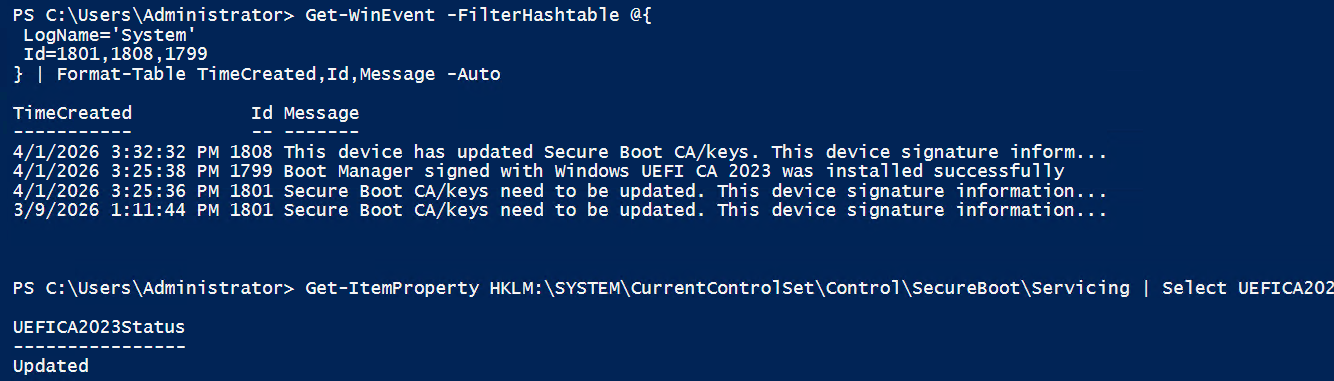
So, here is the command in a list you can run to get the job done, if the hardware and platforms allow it.
Get-WinEvent -FilterHashtable @{
LogName='System'
Id=1801,1808,1799
} | Format-Table TimeCreated,Id,Message -Auto
Get-ItemProperty HKLM:\SYSTEM\CurrentControlSet\Control\SecureBoot\Servicing | Select UEFICA2023Status
Suspend-BitLocker -MountPoint C: -RebootCount 3
reg add HKLM\SYSTEM\CurrentControlSet\Control\SecureBoot /v AvailableUpdates /t REG_DWORD /d 0x5944 /f
Get-ScheduledTask -TaskPath "\Microsoft\Windows\PI\" -TaskName "Secure-Boot-Update"
Get-ScheduledTaskInfo -TaskPath "\Microsoft\Windows\PI\" -TaskName "Secure-Boot-Update"
Start-ScheduledTask -TaskPath "\Microsoft\Windows\PI\" -TaskName "Secure-Boot-Update"
shutdown /r /t 0
Get-WinEvent -FilterHashtable @{
LogName='System'
Id=1801,1808,1799
} | Format-Table TimeCreated,Id,Message -Auto
Get-ItemProperty HKLM:\SYSTEM\CurrentControlSet\Control\SecureBoot\Servicing | Select UEFICA2023Status
Get-WinEvent -FilterHashtable @{
LogName='System'
Id=1799
} -MaxEvents 1
shutdown /r /t 0
shutdown /r /t 0
Get-WinEvent -FilterHashtable @{
LogName='System'
Id=1801,1799,1043,1044,1045,1808
} | Sort TimeCreated | Format-Table TimeCreated,Id,Message -Auto
Until next time (next week I will record a webinar on this topic)
/mike
Share this:

Categories: PowerShell, Security, Windows Client, Windows Server

 The Deployment Bunny