

Long time ago, I created a simple tool to remove VMs, it was simpley named RemoveVMwUI. It is written in PowerShell and it can remove VM’s completly, including files. Becore when you remove the VM in Hyper-V manager, you have absolutley no idea where files are, alos, the default behaviur was that if the VM had a snapshot, it will merge before delete, this tool does, not, it reverts the snapshot, and deletes it, much faster. Anyhow, I have now updated this little tool, a few bugs, better description inside the script, and a proper documentation, it also inludes logging, so you can se what was deleted, and when, and as always, a bunch of other fixes, any way here it is.
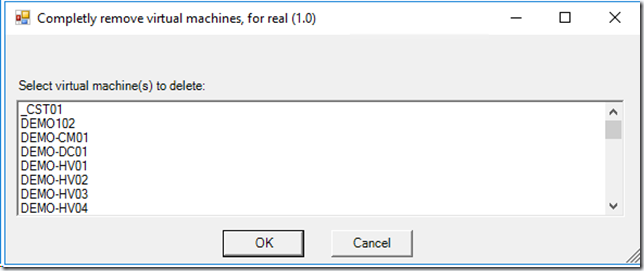
Overview
`RemoveVMwUI.ps1` is an interactive PowerShell script for Hyper-V cleanup. It displays a Windows Forms dialog, lets you select one or more local Hyper-V virtual machines, and then permanently removes each selected VM together with related resources.
What The Script Does
For each selected VM, the script will
- Ensures the script is running elevated (Administrator). If not, it self-elevates.
- Loads all local VMs using `Get-VM`.
- Shows a selection dialog where multiple VMs can be selected.
- Shows a confirmation dialog with the selected VM names.
- Stops the VM if it is running (`Stop-VM -Force -TurnOff`).
- Removes snapshots/checkpoints if present.
- Deletes attached virtual disk files (`Get-VMHardDiskDrive` + `Remove-Item`).
- Removes the VM object from Hyper-V (`Remove-VM -Force`).
- Deletes the VM configuration folder.
- Shows a final dialog listing all removed VM names (or a message that no VMs were removed).
Logging
The script writes a log file in the current user’s temp folder.

- Path format: `%TEMP%\\RemoveVMwUI_yyyyMMdd_HHmmss.log`
- One line per event with timestamp and user identity
Logged information includes:
- Script start and completion
- User running the script
- Selected VM names
- For each removed VM:
- VM name
- Configuration folder path
- Attached disk file paths
- No-selection / no-removal outcomes
Requirements
- Windows with Hyper-V PowerShell module available.
- Local administrator rights.
- PowerShell with access to Windows Forms (`System.Windows.Forms`).
- Permission to stop and delete VMs and VM files.
Usage
Run from an elevated PowerShell session (or allow UAC prompt when script self-elevates):
.\RemoveVMwUI.ps1
Then:
- Select one or more VMs in the first dialog.
- Click `OK`.
- Review the second dialog and click `OK` to continue.
- At the end, review the final dialog that shows all removed VMs.
Important Safety Notes
- Deletion is destructive and permanent.
- VM disks and configuration folders are removed from disk.
- Running VMs are force-stopped.
- There is no built-in rollback.
Recommended before use:
- Export or back up any VM you may need.
- Verify selected VM names carefully.
- Run during a maintenance window when possible.
Scope And Limitations
- Works against local Hyper-V host only.
- Uses GUI interaction (not designed for unattended automation).
- Deletes resources discovered from VM configuration and disk attachments.
Script Location
Files/Tools/RemoveVMwUI at master · DeploymentBunny/Files · GitHub
Share this:

Categories: PowerShell, Tools


