

Save‑AllRunningVMs.ps1
Working with Hyper‑V hosts often means doing maintenance that requires a reboot or other disruptive changes. Patching, firmware updates, configuration fixes or troubleshooting are all common reasons. The problem is rarely the reboot itself, the problem is remembering exactly what was running before you started.
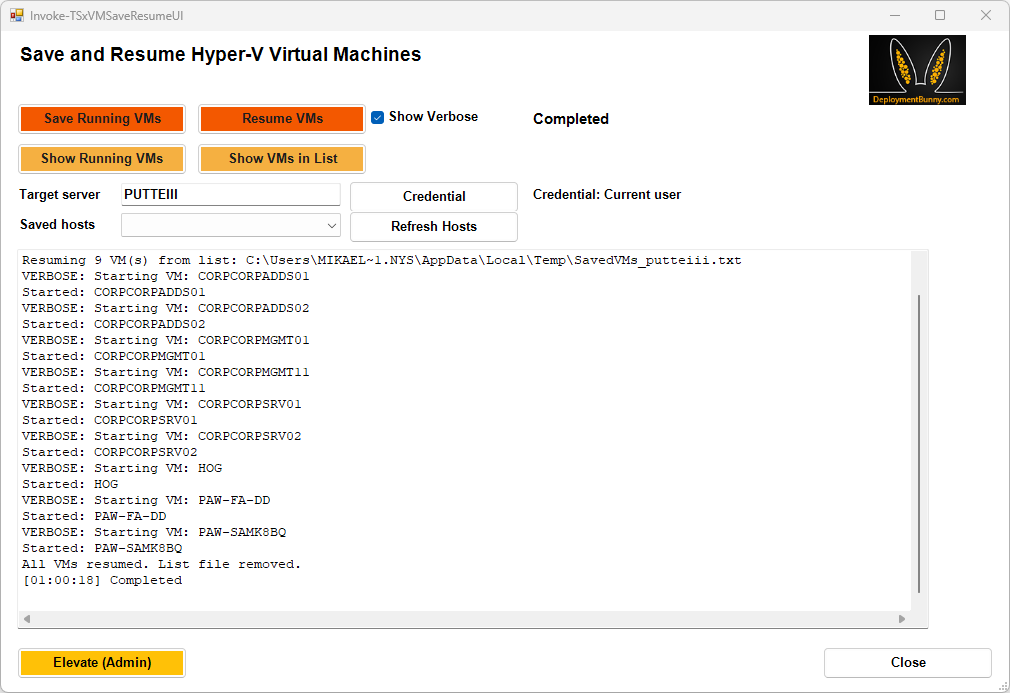
In a perfect world, all virtual machines would be running or all would be stopped. In reality, that is almost never the case. Some VMs are running, some are turned off, some might already be in a saved state. After a reboot, it is surprisingly easy to start too much, too little, or the wrong things entirely.
To solve this, I wrote a tool called Save‑AllRunningVMs.
The idea is simple. Before you start working on a Hyper‑V host, the tool saves all currently running virtual machines and stores that state. When you are done and the host is back online, the tool can restore only the virtual machines that were running before, leaving everything else exactly as it was.
This makes maintenance predictable and repeatable, even when the environment is not clean or consistent.
The tool works both from the command line and through a simple UI. The UI allows you to connect to one or more Hyper‑V hosts and save the running state of virtual machines per host. Each host’s configuration is stored locally in a file, which means you can work on multiple servers independently and restore them later without having to remember what was running where.
When you are finished with your maintenance, the tool reads the saved configuration for each host and resumes only the virtual machines that were running at the time they were saved. Virtual machines that were stopped or already saved are left untouched.
The tool includes logging and supports verbose output, which makes it suitable both for interactive use and for troubleshooting if something does not behave as expected. It also remembers settings between runs, so you do not need to reconfigure it every time you use it.
This is a tool we use when we want to make changes without relying on memory, screenshots, or manual checklists. It does not try to manage virtual machines beyond that single purpose, it simply makes sure that a Hyper‑V host returns to the same running state it had before maintenance started.
The tool is available here:
https://github.com/DeploymentBunny/Files/tree/master/Tools/Save-AllRunningVMs
The README with usage details is here:
https://github.com/DeploymentBunny/Files/blob/master/Tools/Save-AllRunningVMs/README.md
It is a small toolkit, but it removes a class of mistakes that are easy to make and annoying to fix after the fact.
Sample sessions
Saving running virtual machines from the command line
Before starting maintenance on a Hyper‑V host, you can save all currently running virtual machines with a single command. The tool will detect which VMs are running and save only those.
.\Save-AllRunningVMs.ps1 -ComputerName HV01
This will save all running VMs on HV01 and store the state information locally. Virtual machines that are already stopped or saved are ignored.
If you want more detailed output while the script runs, you can enable verbose logging.
.\Save-AllRunningVMs.ps1 -ComputerName HV01 -Verbose
All actions are logged, which makes it easy to verify what was saved and troubleshoot if needed.
Restoring previously running virtual machines from the command line
After maintenance and reboot, you can restore only the virtual machines that were running before.
.\Restore-AllRunningVMs.ps1 -ComputerName HV
The script reads the saved state information for the host and resumes only the VMs that were previously running. Virtual machines that were stopped before maintenance remain stopped.
Working with multiple Hyper‑V hosts
You can repeat the save operation on multiple hosts before starting maintenance.
.\Save-AllRunningVMs.ps1 -ComputerName HV01
.\Save-AllRunningVMs.ps1
Each host’s running VM state is stored separately. When restoring, each host is handled independently, making it easy to work through several servers one at a time.
Using the UI to save running virtual machines
The tool also includes a UI for interactive use. Start the UI script:
.\Save-AllRunningVMs-UI.ps1
From the UI you can connect to one or more Hyper‑V hosts and save the running state of virtual machines per host. The UI stores each server’s configuration locally, allowing you to close the tool, perform maintenance, and come back later without losing track of what was running.
The UI remembers previous settings, so reconnecting to the same hosts does not require reconfiguration every time.
Restoring virtual machines using the UI
After maintenance is complete, start the UI again and select the host you want to restore. The tool will read the saved configuration for that host and resume only the virtual machines that were running at the time they were saved.
This makes it easy to return each Hyper‑V host to its original running state without manually checking which VMs should be started.
Until next time
/DeploymentBunny
Share this:

Categories: Hyper-V, PowerShell


