


When installing DeployR Community Edition, you may want to expose it to the internet or place it behind a firewall. In these scenarios, the internal IP address of the server will not match the external IP address—which is completely expected.
However, DeployR Community Edition has a requirement:
for security and operational reasons, the FQDN (Fully Qualified Domain Name) must match the server’s internal IP address during installation.
If this requirement is not met, the installation will not allow you to continue.
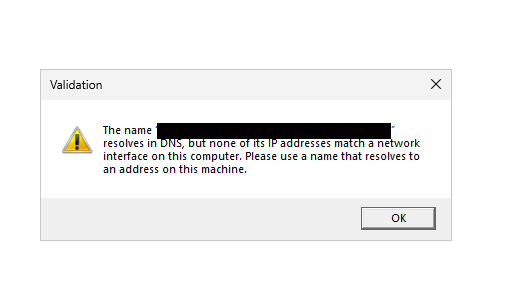
How to Fix the Issue
Fortunately, the solution is straightforward.
- Open Notepad as an Administrator
- Navigate to:
C:\Windows\System32\drivers\etc\hosts - Add a new entry mapping:
- The internal IP address of the server
- To the external FQDN
Example:
192.168.1.10 deployr0.yourdomain.com
Save the file and proceed with the installation again. This ensures that the FQDN resolves correctly during setup, allowing the installation to complete successfully.
Where to Get DeployR Community Edition
You can download DeployR Community Edition here:
Fill out the form and wait for your license key.
Final Thoughts
This is a small but important detail that can block your installation if overlooked.
Once configured correctly, DeployR installation should proceed smoothly and happily.
Until next time
/The DeploymentBunny


