

Time synchronization is important
Time synchronization is one of those areas that usually works without much attention, until it doesn’t. When it breaks, the symptoms are rarely obvious. Authentication issues, Kerberos problems, or logs that suddenly become hard to correlate are often caused by systems that are not syncing time the way they should.
Over the years we have seen this mostly in environments where different types of systems are treated the same. Domain controllers, member servers, standalone servers, physical machines and virtual machines all have different expectations when it comes to time synchronization. Windows tries to handle this automatically, but in practice it is very easy to end up with configurations that are technically valid, but not correct for the role of the system.
The Script – Set‑TSxTimesync
To deal with this, we wrote a small PowerShell script called Set‑TSxTimesync. It is something we use internally to configure time synchronization in a consistent way, based on what the system actually is. The script is not meant to replace Windows time services or do anything exotic, it simply makes sure the configuration matches the role and platform of the machine.
The script detects whether the system is a domain controller, a domain member or a standalone server, and it also detects whether the system is physical or virtual. This is important, especially for virtual machines, where time may already be provided by the hypervisor. Combining hypervisor time synchronization with external NTP sources is a common cause of time drift, and the script adjusts the configuration to avoid that situation.
By default, Set‑TSxTimesync uses the NTP Pool Project as its external time source. This is a well‑established and reliable service and works well as a default choice. If you have internal NTP servers or specific requirements, the script can easily be adjusted to use those instead.
Here is how you can use the script:
.\Set-TSxTimesync.ps1 -TimeSource "pool.ntp.org" -WhatIf
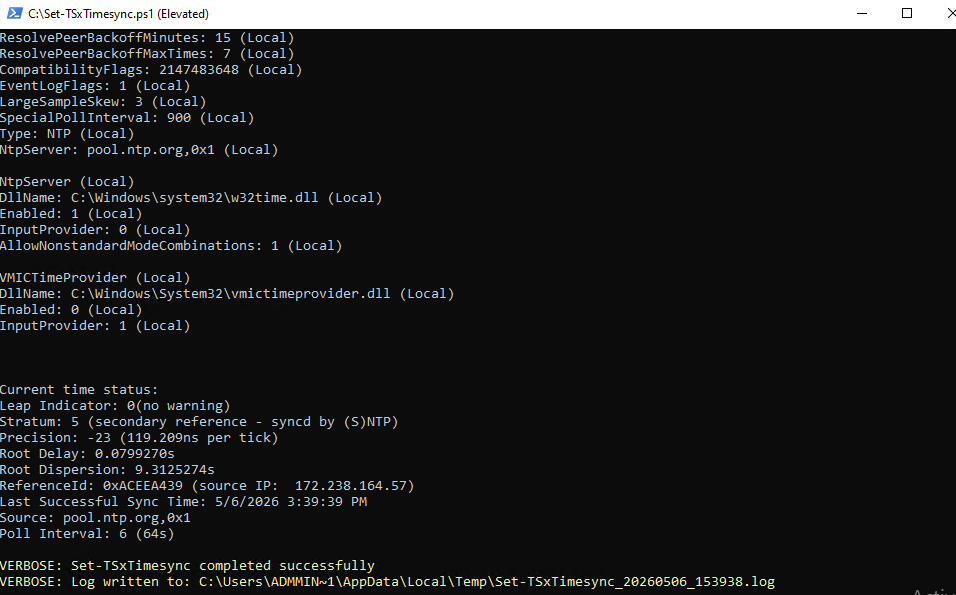
We typically use this script during deployment, as part of a baseline configuration, or when cleaning up environments where time settings have been changed over time without a clear design. Running it ensures that the system ends up with a predictable and supportable time configuration without having to manually verify each setting. If the device is a memeber of the Active Directory, then this is not needed, but the Domain Controller needs a correct time. So we use this script on doomain controllers, workgroup servers…
The script is available here:
https://github.com/DeploymentBunny/Files/tree/master/Tools/Set-TSxTimesync
It is a small tool, but it solves a problem that tends to cause unnecessary troubleshooting when it is not handled correctly.
Until next time
/DeploymentBunny
Share this:

Categories: PowerShell, Windows Server

 The Deployment Bunny